

LTS command – Ltscale command in AutoCAD – Define the length of space and the dashed line
Advertisements
Ltscale command in AutoCAD (LTS command in CAD): to define rate for linetype, it means to define the length of space and the dashed line. If this rate is small, the space is too small and outlines are drew as consecutive line (dashed line looks like continuous line). If this rate is too large, the length of dashed line is too large, sometime is over the length of drawing object, therefore we also see the consecutive line. In CAD, if you choose drawing according to Meter system, you do not need to define rate of linetype. The way to use ltscale command in CAD as below:
- Command: Ltscale
- Shortcut command: LTS

Command : Ltscale ↵
Enter new linetype scale factor <1.000>: ↵ Enter a positive value
In dialog box Linetype Manager, value Ltscale is defined at edit box Global scale factor <when choosing key details>
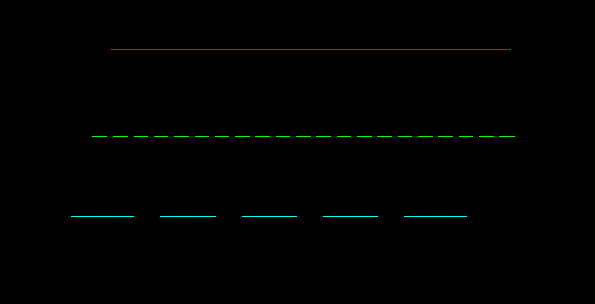
For example: There are 2 dashed lines as below picture:

Start ltscale command and it is supposed to enlarge 2 times (it means enter 2), you will get:
Good luck!
Thanks for reading!!!
You can see more useful writings about CAD… here
Advertisements