
CHA command in AutoCAD – Chamfer command – Chamfer Solid.
1. The way to call CHA command in AutoCAD.
| Scroll down menu | Screen menu | Type command | Tool bar |
| Modify » Chamfer | Modify 2 » Chamfer | Chamfer, Cha | Modify |
Chamfer command is to chamfer the edges of 2D or 3D objects following to 2 chamfer distances. Depending on the selected object, the different prompt lines appear. Here, we only introduce to chamfer the edges of 3D object.
- Chamfer¿
– (TRIM mode) Current chamfer Dist1 = current, Dist2 = current
– Select first line or [Undo/Polyline/Distance/Angle/Trim/mEthod/Multiple]: Select the edge of solid to chamfer.
2. The options of CHA command in AutoCAD.
- First Line
Select the first edge to chamfer.
- Chamfer
(TRIM mode) Current chamfer Dist1 = current, Dist2 = current
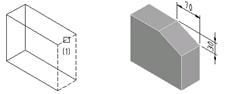
Select first line or [Undo/Polyline/Distance/Angle/Trim/mEthod/Multiple]: Select the edge of solid to chamfer (1).
- Base surface selection…
Enter surface selection option [Next/OK (current)] <OK>: Press ENTER to set up the selected surface as base surface or enter N (next) to select the other surface with same selected edge as base surface.
Specify base surface chamfer distance <current>: 30 Enter the chamfer distance on base surface.
Specify other surface chamfer distance <current>: 70 Enter the chamfer distance on the other surface with same edge with base surface.
Select an edge or [Loop]: Select the edge (1) on base surface to chamfer.
Select an edge or [Loop]: Select next edge on base surface to chamfer or ENTER to complete.
CHA command in AutoCAD – Chamfer command – Chamfer Solid.
- Loop
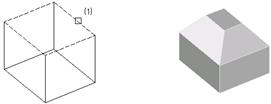
Chamfer all edges of base surface at the same time.
- Cha
(TRIM mode) Current chamfer Dist1 = 30.0000, Dist2 = 70.0000
Select first line or [Undo/Polyline/Distance/Angle/Trim/mEthod/Multiple]: Select the edge of solid to chamfer (1).
Base surface selection…
Enter surface selection option [Next/OK (current)] <OK>: N Move to other surface.
Enter surface selection option [Next/OK (current)] <OK>: Define this surface as base surface.
Specify base surface chamfer distance <30.0000>: 40 Enter chamfer distance on base surface.
Specify other surface chamfer distance <70.0000>: 50 Enter chamfer distance on the other surface with same edge with base surface.
Select an edge or [Loop]: L
Select an edge loop or [Edge]: Select an edge of surface to chamfer.
Select an edge loop or [Edge]:
- Edge
Select each edge on surface to chamfer.
- Undo
Come back the previous action of the command.
Good luck!
Thanks for reading!!!
You can see more useful writings about CAD… here
You can see more commands in AutoCAD… here
If you find our work useful, your support would mean a lot and help us grow even better.DONATE
Related posts
TRACE command in AutoCAD – The command to draw the thick straight segments
Error with impossibility to choose text in Autocad
Imagequality command in AutoCAD – Control the image quality
Polysolid command in AutoCAD – Created 3D polysolid
Pface command in AutoCAD – Polyface command – Create 3D flat polyface
Geographiclocation command in AutoCAD – Set up the parallel of latitude and the meridian
Notes for dim in Autocad
Edge command – Control the display of 3DFace edges in AutoCAD
Grid command in AutoCAD